Raspberry Pi OS in 2026: what changed and which OS to run on your Pi
Raspberry Pi OS had its busiest year in a long time. A new long-term kernel, tighter security defaults and the largest desktop redesign since the move to Wayland. Here is what changed, how to install it, and when another system suits your Pi better. Updated Oct 7, 2026.
The new Raspberry Pi Desktop in pictures
Photos of the redesigned desktop from Raspberry Pi Ltd. It is not limited to Pi boards: the same desktop runs on ordinary x86 laptops on top of Debian 13.
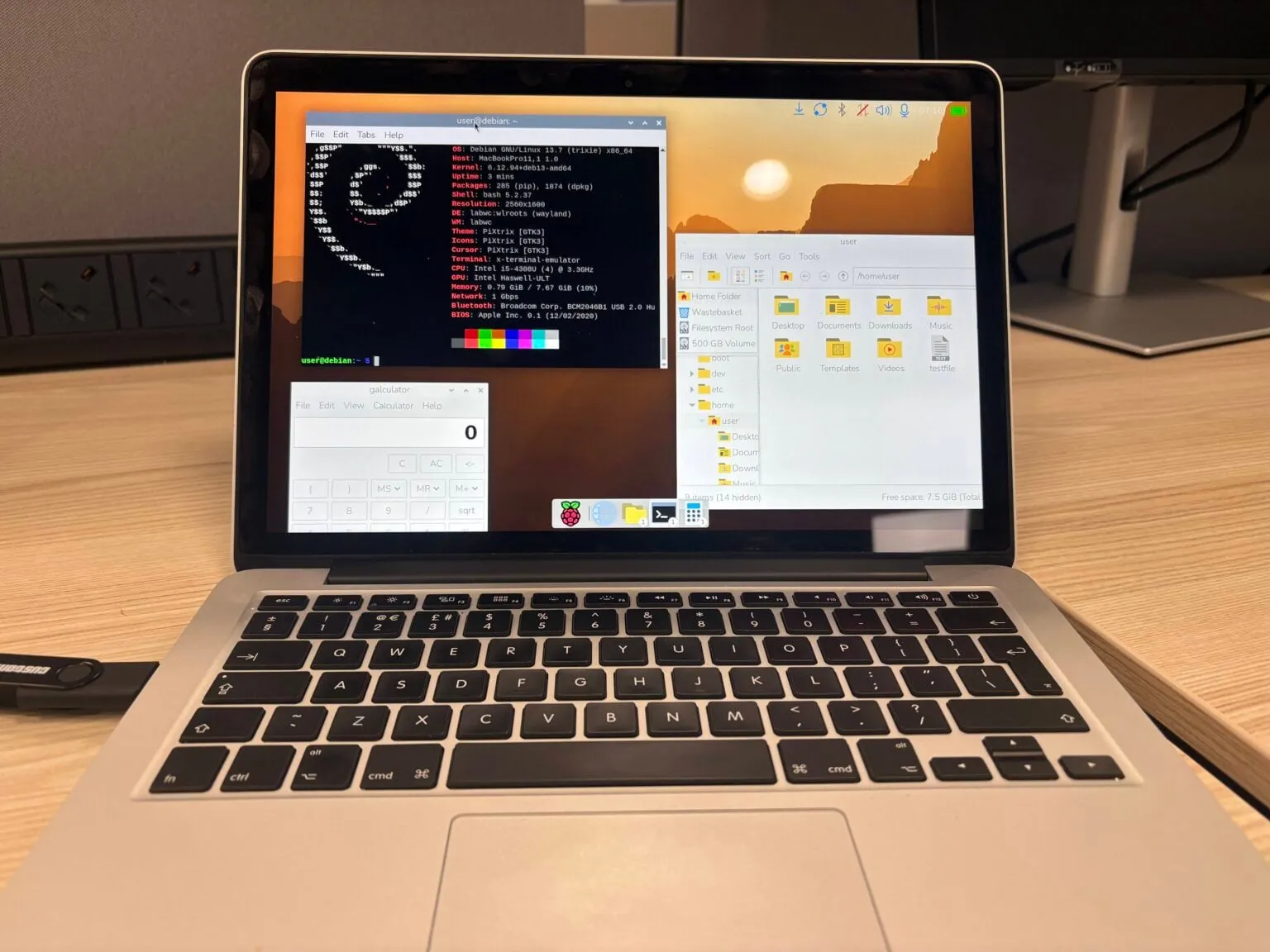
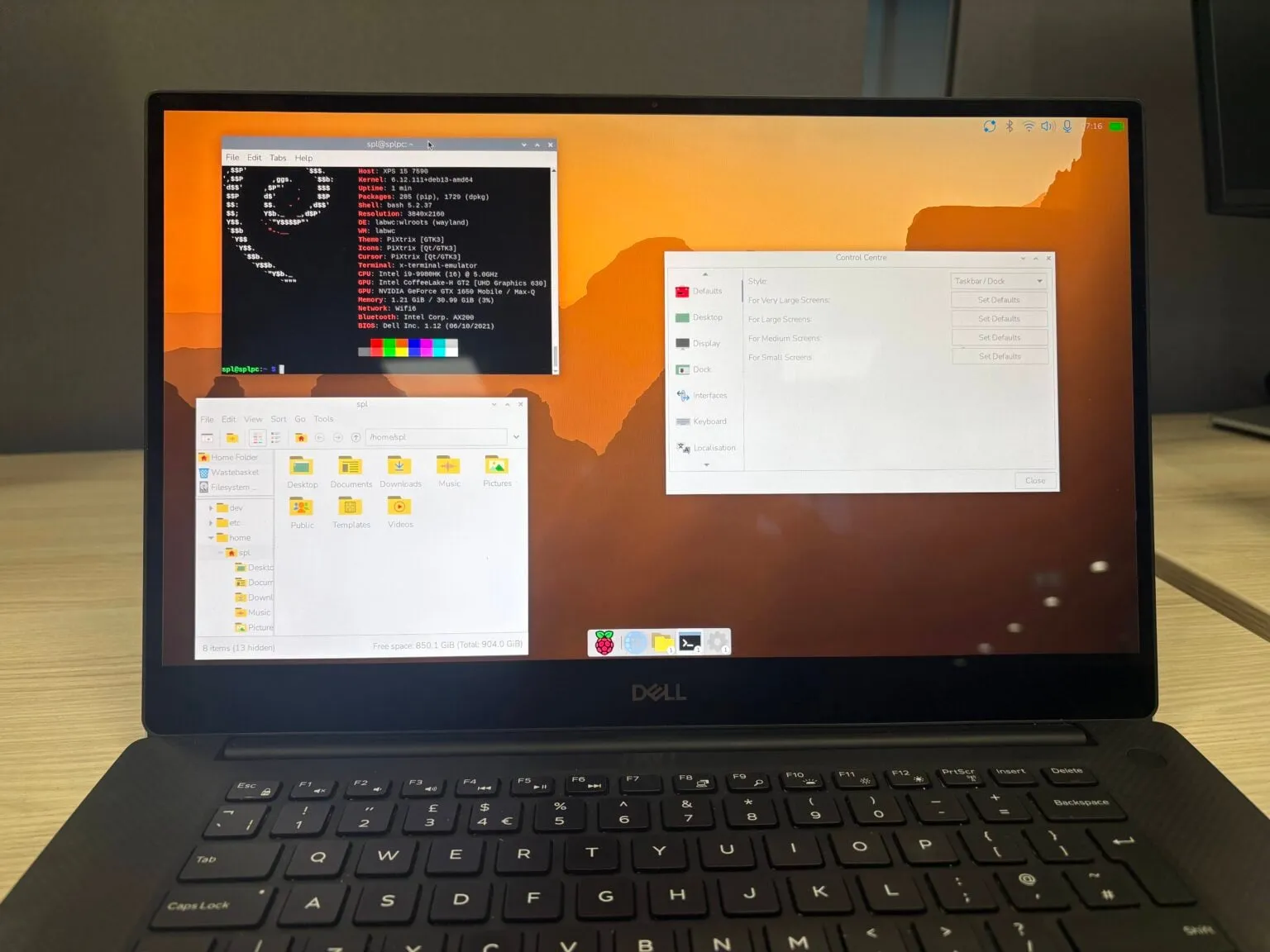
Raspberry Pi OS updates in 2026
Every point release this year, newest last. Each one is a free in-place update.
- 1April 2026: Security defaults tightened
The second update to the Debian 13 “Trixie” based release disabled passwordless sudo by default, so admin commands now ask for your password.
- 2June 2026: Linux 6.18 LTS kernel
The first update since April moved to the Linux 6.18 long-term support kernel, with new drivers and performance work, alongside an updated labwc compositor.
- 3September 2026: Desktop overhaul and a new dock
The biggest visual change in years: an optional icon dock, a reorganised Control Centre, a new screenshot tool and file manager changes.
- 4October 2026: Polish and fixes
The 6 October update refines the dock, keeps appearance settings when you switch between dock and taskbar, fixes the file manager and ships kernel 6.18.50 LTS.
Track release dates and support status on the Raspberry Pi OS profile (currently #27 in our ranking).
Which OS should you run on your Raspberry Pi?
Pick the card that matches your project.
Learning, desktop and GPIO projects
You want everything to work on day one: camera, displays, GPIO and the official accessories.

The official system gets new hardware support first and is what nearly every tutorial assumes.
A full Ubuntu desktop or server
You already use Ubuntu elsewhere or need software that targets it.
- Ubuntu#1

Canonical publishes official Raspberry Pi images for Pi 4 and Pi 5, including LTS server builds.
Headless home server
Pi-hole, Home Assistant add-ons, a NAS or Docker with as little overhead as possible.
- Raspberry Pi OS#27
- Debian#3
- Alpine Linux#26
- DietPi


Raspberry Pi OS Lite has no desktop; Alpine is tiny and fast; DietPi automates common server installs.
Media centre and retro gaming
A TV box or an arcade cabinet, not a general-purpose computer.
- LibreELEC (Kodi), RetroPie, Batocera, Recalbox
These appliance systems boot straight into one job and are all in Raspberry Pi Imager.
How to install Raspberry Pi OS
Four steps with Raspberry Pi Imager, the official and recommended tool.
- 1Install Raspberry Pi Imager
Download it for Windows, macOS or Linux from raspberrypi.com/software. On Linux it is also available as a Flatpak.
- 2Choose your board, then the OS
Imager lists only the systems that support your model. Pick “Raspberry Pi OS (64-bit)” for Pi 3, 4, 5 and 500; use Lite for headless servers.
- 3Preconfigure before writing
Set the user name, password, Wi-Fi, locale and enable SSH in the customisation step, so the Pi is reachable on first boot without a screen.
- 4Write, boot and update
Insert the card (or SSD), power on, then run sudo apt update && sudo apt full-upgrade to pick up the latest point update.
Tips for a reliable Pi
- Use the official power supply; under-voltage is the most common cause of crashes and corrupted cards
- Boot a Pi 5 from an NVMe SSD for much faster storage and longer life than microSD
- Choose the 64-bit image on any board that supports it
Do not pull the power without shutting down; microSD cards corrupt easily
Do not re-enable passwordless sudo on a Pi exposed to the internet
Want a regular PC instead? Use our distro finder or read the secure Linux guide.
Sources
This guide is based on Raspberry Pi’s own release announcements and documentation, cross-checked with independent coverage. We update it with each Raspberry Pi OS point release.
- Raspberry Pi: Raspberry Pi OS news archive
- Raspberry Pi documentation: getting started
- Phoronix: Raspberry Pi OS moves to Linux 6.18 LTS kernel (June 2026)
- Phoronix: Raspberry Pi Desktop overhauled, adds icon dock
- Linuxiac: September update adds new dock
- Linuxiac: October 2026 update
- DistroWatch: Raspberry Pi OS 2026-04-13 release
Raspberry Pi OS: common questions
What is new in Raspberry Pi OS in 2026?
In 2026 Raspberry Pi OS moved to the Linux 6.18 LTS kernel (June), disabled passwordless sudo by default (April), and received a desktop overhaul with an optional dock, reorganised Control Centre and new screenshot tool (September), refined in the 6 October 2026 update.
Is Raspberry Pi OS based on Debian?
Yes. The current release is based on Debian 13 “Trixie” and uses APT and Debian packages, with extra Raspberry Pi firmware, kernel and desktop packages on top.
Should I use the 64-bit or 32-bit version?
Use 64-bit on Raspberry Pi 3, 4, 5 and 400/500 boards. The 32-bit image is mainly for older and Zero-class boards with very little memory.
What is the difference between Raspberry Pi OS and Raspberry Pi OS Lite?
Lite has no graphical desktop. It is smaller, uses less memory and suits headless servers you manage over SSH.
Can I run other Linux distros on a Raspberry Pi?
Yes. Ubuntu, Debian, Fedora, Alpine, Manjaro ARM, DietPi and appliance systems like LibreELEC and RetroPie all run on Raspberry Pi. Raspberry Pi OS still has the best support for official hardware.
Can a Raspberry Pi replace a desktop PC?
A Raspberry Pi 5 or 500 with 8 GB or more of RAM and an SSD handles web browsing, office work, coding and light media. It is not suited to modern gaming or heavy video editing.
How do I update Raspberry Pi OS?
Open a terminal and run sudo apt update && sudo apt full-upgrade, then reboot. The desktop also shows a notification when updates are available.